Kalye Controls Guide: Keybinds, Lock-On, and Dash vs Dodge
The default Kalye controls use M1 for light attacks, F for heavy strikes, R for grabs or finishers, holding M2 to block, Q to dash or double-tap Q to dodge, Z for assisted combat lock-on, Left Shift to sprint, and Left Ctrl for shift lock. Developer Istetik Studios confirms on the official Roblox description that you can customize every key through the in-game keybinds menu. Because guns are prohibited across Kampilan City, learning these melee and movement buttons is essential for every virtual street encounter. This guide covers the official keyboard map, targeting modes, and interface orientation.
Confirmed Default Keyboard Controls
The official game description provides a complete list of default PC inputs for close-quarters brawling and street navigation. All combat relies on martial arts styles like Boxing, Capoeira, and Karate rather than firearms. You can consult the reference table below to memorize the baseline inputs before entering a virtual match.
| Input | Action |
|---|---|
| M1 (Left Mouse Button) | Light Attack |
| F | Heavy Attack |
| R | Grab / Finisher |
| Hold M2 (Right Mouse Button) | Block |
| Q (Single Press) | Dash |
| Q (Press Twice) | Dodge |
| Z | Assisted Combat Lock-On |
| Left Shift | Sprint |
| Left Ctrl | Shift Lock |
Official documentation only lists mouse and keyboard bindings, so controller and mobile touch button layouts remain unconfirmed. If you play on a non-PC device, check the on-screen overlays immediately upon loading into a safe street corner. Testing each prompt before engaging rivals ensures you do not accidentally trigger an offensive move near neutral bystanders.
Remapping Keybinds and Camera Targeting
Istetik Studios officially states that the in-game keybinds menu allows you to change every key to match your personal preference. While the developer confirms this menu exists, public documentation does not specify the exact icon or top-bar button used to open it. To rebind your controls safely, load into Kampilan City, inspect the peripheral screen buttons for a settings or keyboard label, and test your modified inputs in an empty alley. If you swap action keys like F or R, verify that they do not conflict with your movement fingers during diagonal sprinting.
Left Ctrl and Z have different names in the official controls list: shift lock and assisted combat lock-on. Treat them as separate inputs when checking your bindings. The description does not explain target selection, cycling between avatars, camera rotation rules, or whether an attack automatically tracks a moving target. Observe those responses in your own current client before building a control layout around an assumed camera behavior.
Movement Execution: Single Dash vs Double-Tap Dodge
The developer describes Q as dash, with two presses for dodge. The listing does not publish the interval between presses, a cooldown, a stamina cost, or any invulnerability window. Check one press and then two presses while watching the animation and interface feedback in your current session. If the expected response fails, check the Keybinds menu first and confirm the action is still assigned to Q before assuming the mechanic has been removed.
Reading the On-Screen Combat Interface
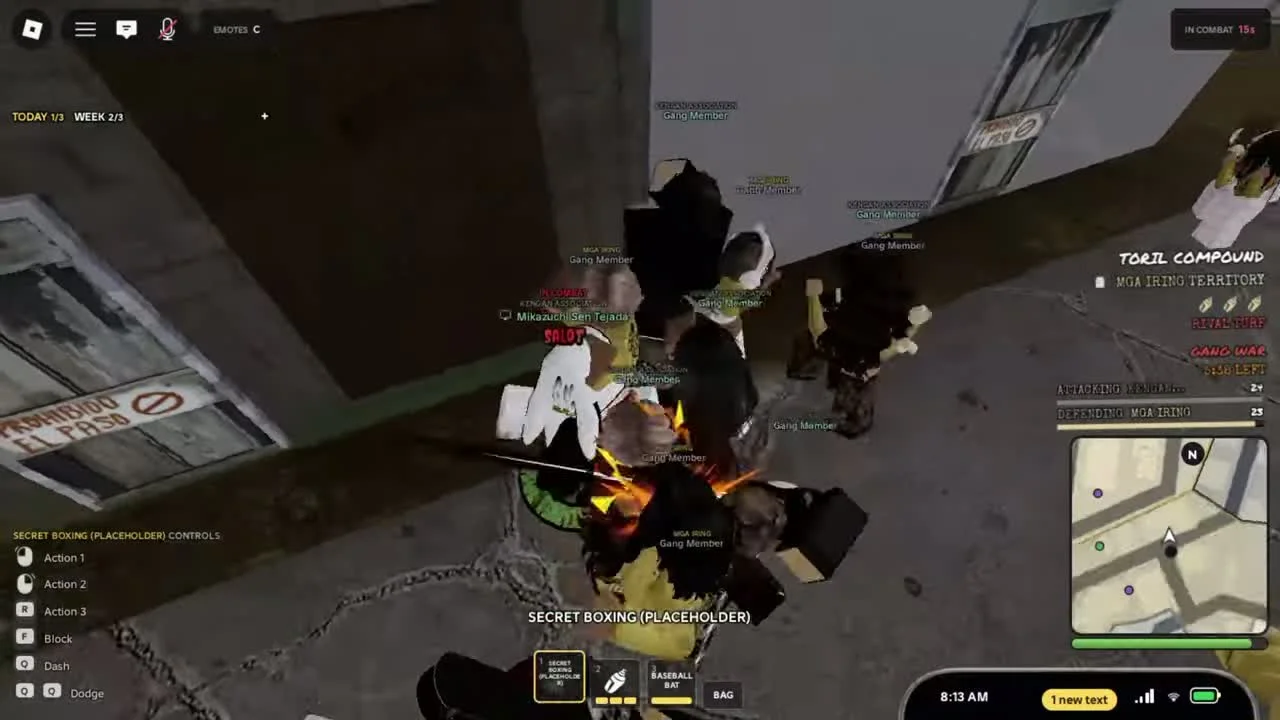
Gameplay footage from the World Weird Web video capture shows how combat inputs connect to the live heads-up display. In that recorded build, a bottom-left prompt list displays available actions alongside a bottom hotbar and green and blue status bars. The footage also displays a combat style label reading SECRET BOXING (PLACEHOLDER) above the bottom interface, which is an observed label recorded in an older build rather than an officially confirmed obtainable style. Because the game is in beta and subject to layout adjustments, glance at your bottom-left action list when reviewing your current style and controls to confirm which prompts are currently active.