Kalye Mobile Controls and Touch Layout Guide
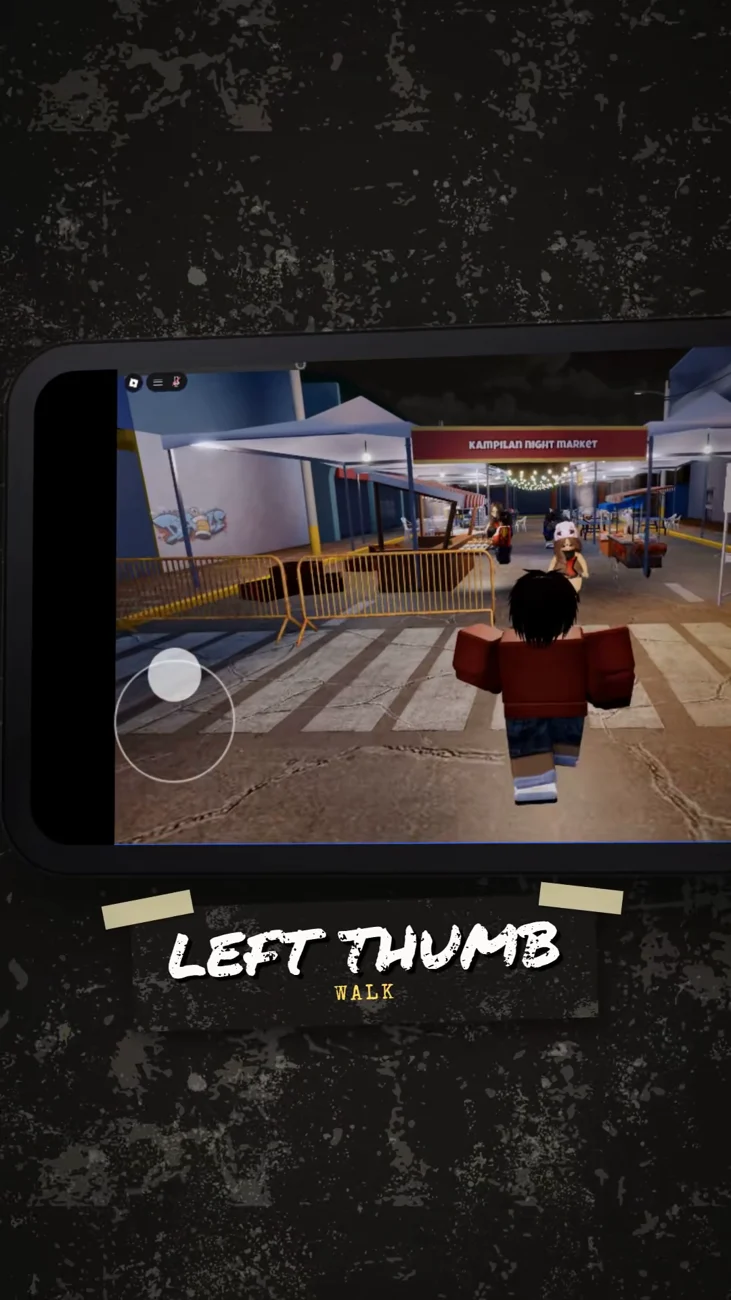
Kalye mobile controls use a landscape touchscreen layout with a virtual joystick on the left for movement and circular action buttons on the right for virtual combat inputs. Official footage from Istetik Studios confirms that phone and tablet players walk with the left thumb, tap to sprint, and trigger Light, Heavy, and Grab actions with their right thumb while assisted aim helps orient attacks. You can also move and resize every on-screen button through the Settings > Controls menu to fit your screen size and grip.
Movement, Sprint, and Camera Angle
The left side of the touchscreen manages character positioning during landscape gameplay. You steer your character by sliding your left thumb across the virtual joystick to walk in any direction. When you need to close distance or reposition quickly, a tap input triggers your sprint without requiring a separate desktop keyboard key. Official mobile footage pairs these movement inputs with a top-down camera perspective designed to keep nearby opponents visible during virtual street matches.
- Left thumb joystick: Controls walking direction and continuous positioning.
- Tap to sprint: Transitions your character from a walk into a faster run.
- Top-down view: Frames the immediate virtual arena so you can read spacing while moving.
Action Buttons and Assisted Aim
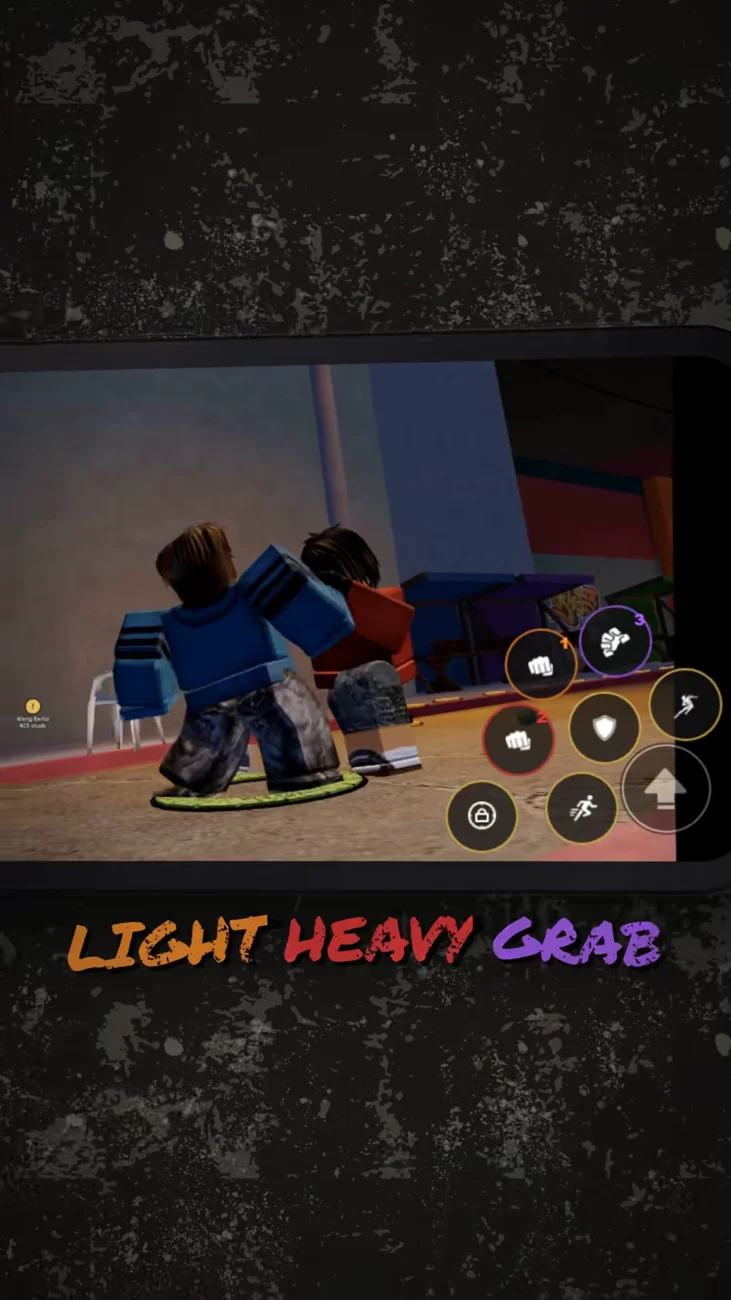
The right side of the interface groups circular touch buttons for your core offensive interactions. Official gameplay prompts identify three primary attack inputs labeled Light, Heavy, and Grab. Mobile players also benefit from built-in aim assistance, as the showcase advertises aiming assistance with the caption It aims for you. Because the system does not publish a targeting range or guarantee every connection, you still need to manage your own footwork, spacing, and button selection.
- Light: Fast circular action button for quick offensive pressure.
- Heavy: Stronger action button used alongside Light and Grab in touch sequences.
- Grab: Dedicated interaction button positioned within the right-hand cluster.
- Assisted aim: Helps turn your character toward an opponent when you press an attack input.
Customizing Buttons in Settings > Controls
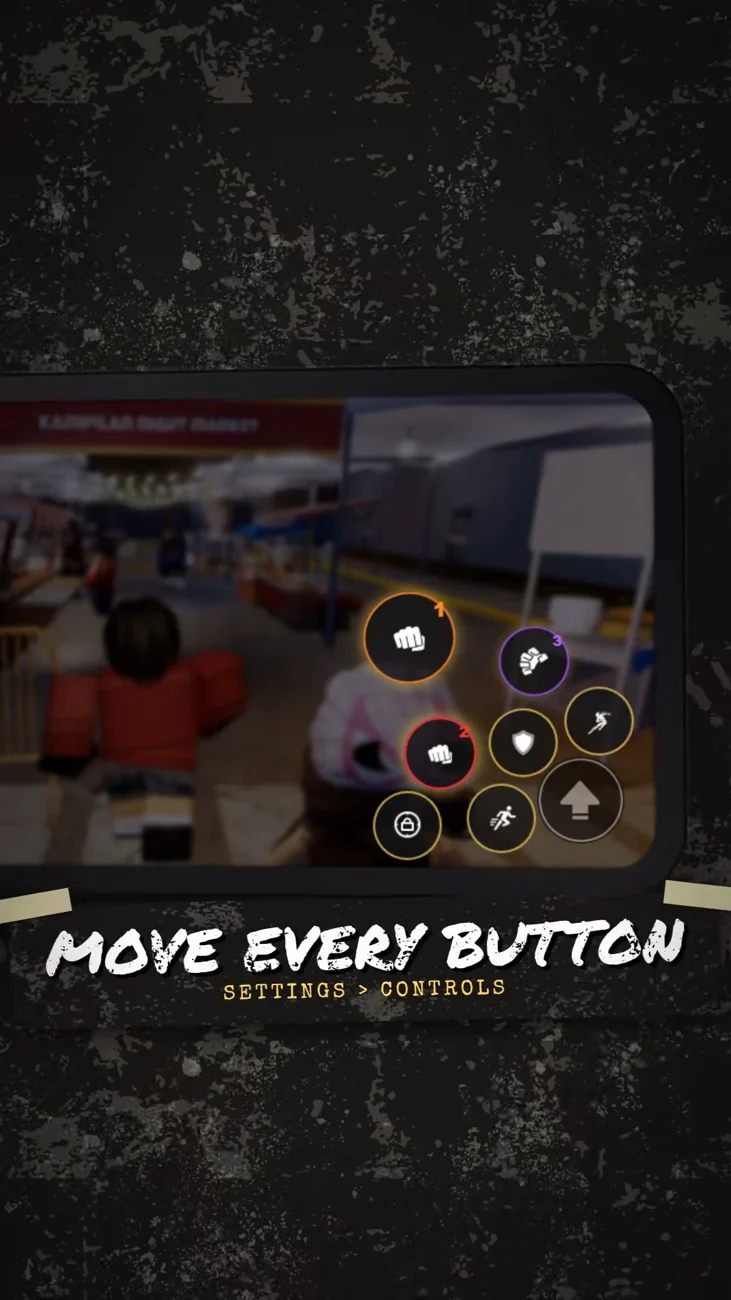
If the default button placement feels cramped on your phone or wide tablet display, you can customize the interface inside the in-game menu. Navigating to Settings > Controls allows you to move every button and resize the touch targets to match your natural thumb reach. While the developer confirms full button repositioning and scaling, the preview footage does not display whether custom layouts persist across sessions or use a dedicated save prompt. As a practical step, arrange your controls so the left joystick and right action cluster sit comfortably under your thumbs with clear spacing between Light, Heavy, and Grab.
- Menu path: Open Settings > Controls to access mobile layout customization.
- Adjustable elements: Every on-screen button can be moved and resized for phones or tablets.
- Spacing check: Keep circular action buttons separated enough to prevent accidental overlapping taps.
- Rejoin check: Verify your button positions after rotating your screen or rejoining a server.
Quick In-Game Touch Setup Checklist
Before entering an active virtual match, take a quiet moment after spawning to test your touchscreen responsiveness from start to finish. Begin by walking in a circle with your left thumb and testing the tap-to-sprint transition, then press Light, Heavy, and Grab in sequence to confirm your right thumb reaches every circular button cleanly. If any input feels awkward or blocks your view of the top-down arena, return to Settings > Controls and adjust the button sizes until your grip feels effortless. Because Kalye is under active development by Istetik Studios, touch defaults and menu details can evolve as new updates roll out.